
Working from more than one location
This guide shows you how to:
- Set up a second branch, a regular day somewhere else, or a one-off show
- Only offer staff at the locations they work at
Go to Settings and choose Locations. If you only work from one address, you can ignore this page.
The list
Each location shows its name, what kind it is, how many days a week it runs and how many staff are assigned to it.
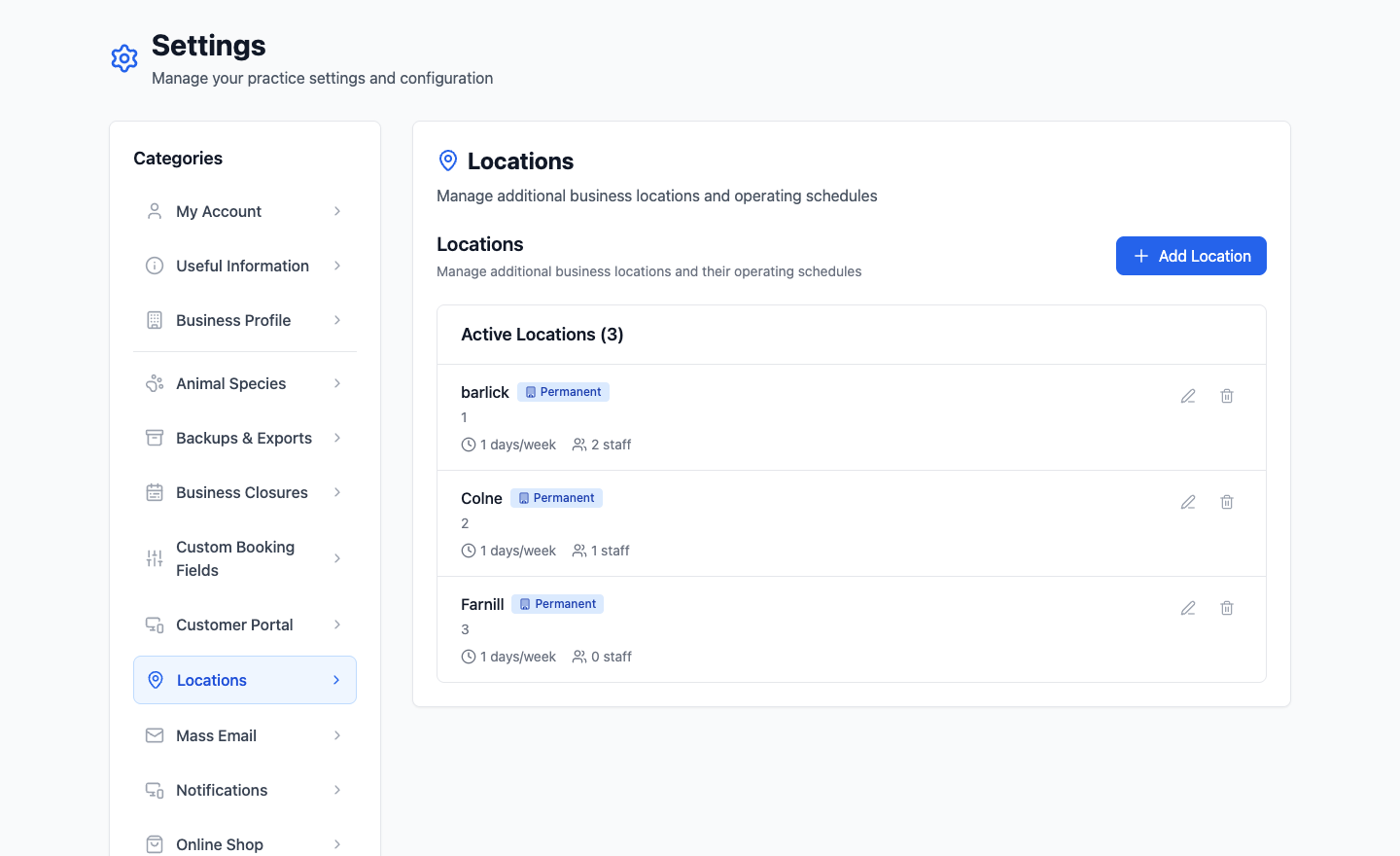
Three kinds of location
| Type | Use it for |
|---|---|
| Permanent | Somewhere with a regular weekly schedule — a second branch open Tuesdays and Thursdays. You set the days and times, the same as your main opening hours. |
| Recurring | A repeating pattern that isn't weekly — the last Friday of every month, or the 15th. You can set it by day of the month, or as an nth weekday. |
| Ad-hoc | Specific dates only, with nothing regular about them. Trade shows, one-off clinics, a weekend event. |
Pick the type that matches reality rather than the one that's quickest to fill in. A "last Friday of the month" clinic set up as three ad-hoc dates means going back in every quarter to add more.
Adding one
Click Add Location, give it a name and an address, choose the type, then set its schedule. Name it the way your staff talk about it — "Colne" beats "Second Premises" when someone's reading a diary at speed.
Assigning staff
Each location has its own list of staff. Only the people you assign are available for appointments there, which stops someone being booked at a branch they never work at.
Turning one off
There's an active setting on each location. Untick it for somewhere you've stopped using and it drops out without taking its history with it. Useful for a seasonal site you'll want back next summer.
You don't need this for one premises
If everything happens at one address, ignore this page entirely. Your business address and opening hours under Business Profile already cover it, and adding a location you don't need just gives your staff another field to think about.