When a vet refers a new customer
This guide shows you how to:
- Find a referral from a vet as soon as it arrives
- Turn it into a customer and animal in one click
- Book their first visit
A vet practice that uses the vet portal can refer an owner and animal you've never seen.
1. Find the referral on your Dashboard
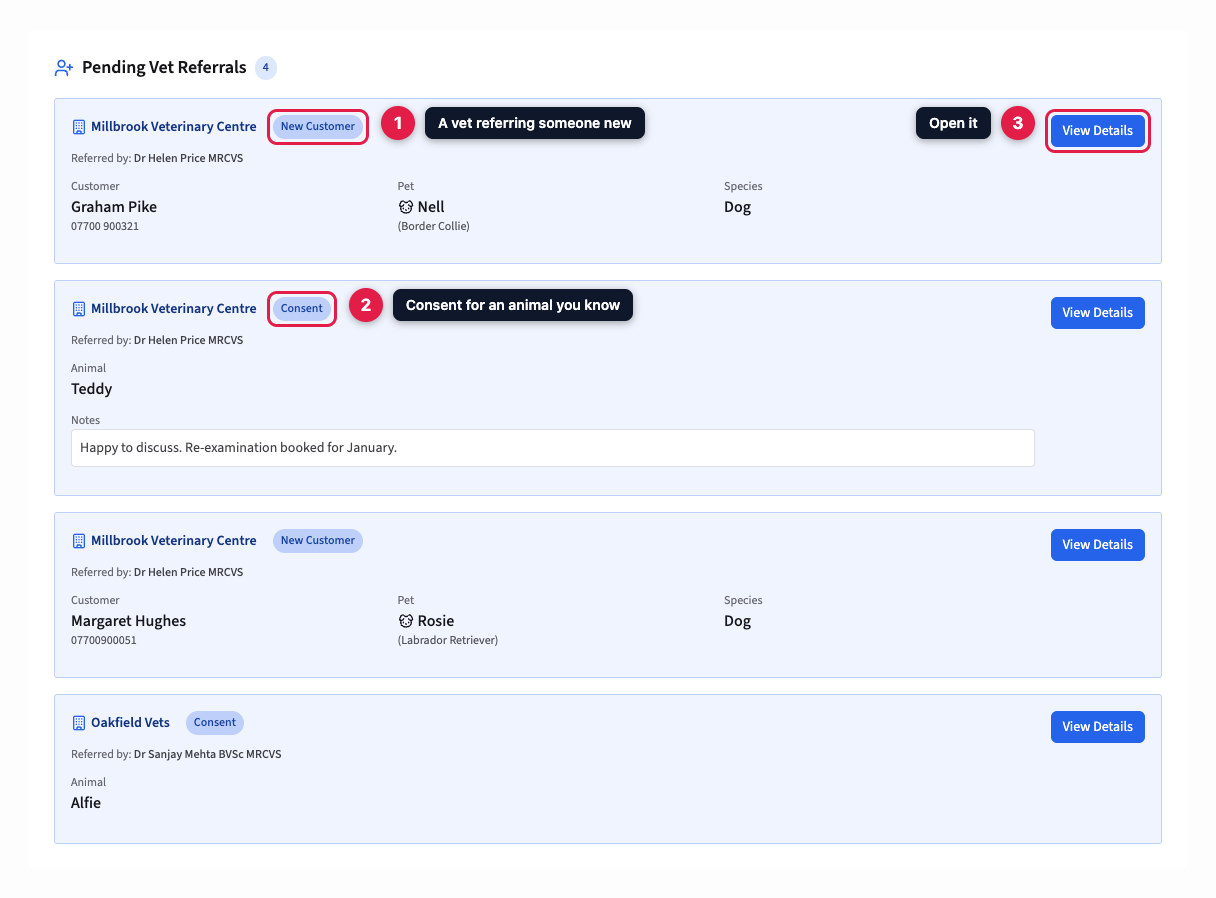
New referrals appear on your Dashboard under Pending Vet Referrals. A referral for someone new is labelled New Customer and shows the owner's name and phone number, and the animal's name and species. PetDesk doesn't email you when one arrives, so keep an eye on the Dashboard. Click View Details to open it.
2. Check the details
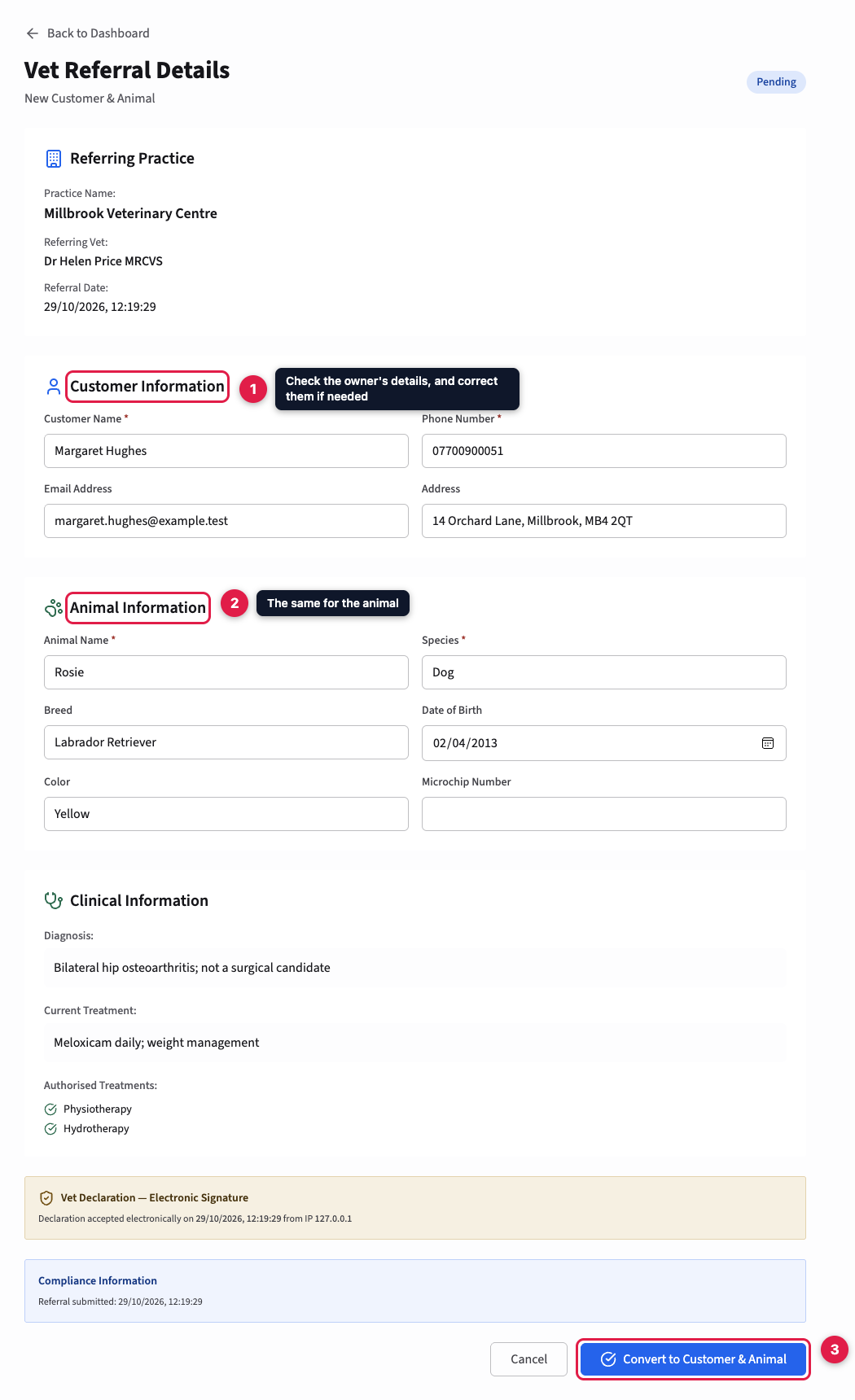
The referral shows the practice and vet who sent it, then the owner's and animal's details in boxes you can edit. Correct anything that's wrong and fill any gaps, such as a microchip number. The owner's name and phone number, and the animal's name and species, are required. Below are the vet's clinical notes and authorised treatments, and the record of their electronic signature.
Already a customer? Converting always creates a new customer. If the owner is already on your books, convert anyway, then merge the two records: see Merging duplicate customers. The referral moves across with the animal.
3. Convert the referral
Click Convert to Customer & Animal. PetDesk adds the customer and the animal, links the animal to the referring practice, and marks it as having vet consent, because the referral included it. The practice can now see the animal in its portal.
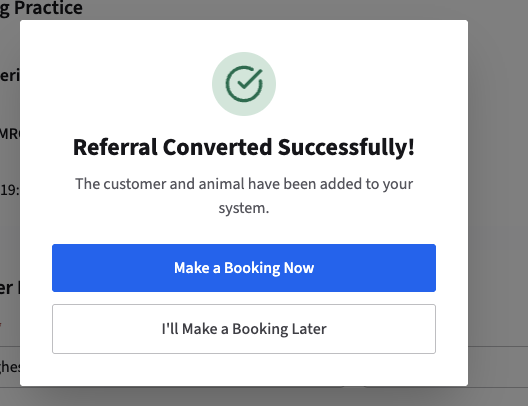
Make a Booking Now opens the new animal's record, where Schedule Appointment books its first visit. Choose I'll Make a Booking Later if you need to ring the owner first. Either way, the referral leaves your Dashboard and stays on file under Animals, then Vet Referrals.